
Getting Started and Fast Wins
This page gets you from an empty machine to a green test. It shows the easy parts only. For the design of the Studio, read Architecture and Design.
The Studio runs on Linux. It is a set of Python 3 scripts. It has no build step of its own. It starts programs that you build in other repositories: ArduPilot SITL, the DroneEngage modules and the DroneEngage servers.
What you need
You need |
How to get it |
Needed for |
|---|---|---|
Python 3 packages |
|
everything |
ArduPilot SITL |
in your |
every flying or driving vehicle |
|
|
every unit |
The Rust servers |
|
the real server stack |
Other modules (camera, GPIO, precision landing …) are necessary only
when a block uses them. If a binary is missing, ./sim up stops early
and gives the name of the binary.
Install
Option A - Docker (fastest)
The Docker image has SITL, the DroneEngage binaries and the 3D viewer inside it.
docker build -f docker/Dockerfile -t de-sim .
docker run -it --network host de-sim
The container runs the forest canopy search demo.
Option B - on your machine
Copy the example settings file. Do this one time on each machine.
cp sim.local.env.example sim.local.env
Open
sim.local.env. Set two paths:DE_CODE- the folder that holds your DroneEngage checkouts.ARDUPILOT_DIR- yourardupilotcheckout with SITL built.
All other lines are optional. Git ignores this file, so it stays on your machine.
Check the machine:
./sim doctordoctorprints oneOK,MISSINGorOPTIONALline for each item. For eachMISSINGline, it gives the command that fixes it. When all lines areOKorOPTIONAL, you are ready.
Tip
./sim doctor sims/copters3.yaml checks only the items that this
one sim needs. ./sim doctor --caps shows the optional
capabilities (camera, v4l2loopback, Android, 3D viewer) that this
machine has.
Your first look: ./sim show
./sim show reads a sim file and prints the units and ports it makes.
It starts nothing, so it is safe to try first.
./sim show sims/copters3.yaml
Example output (the ports are filled in when the sim starts):
Server real: wss None control None slot 40
  copter1     block=copter   copter sysid=40 ...  @-35.363262,149.165237
  copter2     block=copter   copter sysid=41 ...  @-35.363082,149.165237
  copter3     block=copter   copter sysid=42 ...  @-35.362903,149.165237
Other read-only commands:
./sim list                 # every file you can run, with one line each
./sim blocks               # the vehicle types you can use
./sim validate tests/smoke_copters.yaml   # check a file, start nothing
Your first run: ./sim run
./sim run tests/smoke_copters.yaml
This is the “hello world” test. The Studio:
starts three simulated copters and a real DroneEngage server,
sends each copter a square mission,
arms the copters and starts the mission,
waits until each copter reports
mission main completed,checks the assertions and prints PASS or FAIL,
lands the fleet.
Important
The first run is slow. A simulated vehicle needs about 1 to 2 minutes of GPS warm-up before it can arm, the same as a real drone. Later runs on the same fleet use the warm fleet again, so they start faster.
The end of the output looks like this:
== assertions ==
  [PASS] journal_count: value=1.0 (...)
  ...
5 PASS, 0 FAIL, 0 SKIP
results: .../var/results/<utc>/smoke_copters
RESULT .../var/results/<utc>/smoke_copters/summary.json
Exit code 0 means that all steps and assertions passed. The
RESULT line is always the last line. It points to the full report.
Note
./sim run owns the machine: it stops all other live sims
first, because a test needs a clean machine. Add --shared to
keep the other sims alive.
When you finish, stop everything:
./sim down
Fast wins
These files are in the Studio repository. Each one runs with no extra hardware. Run them in this order.
Command |
What you see |
|---|---|
|
The smallest fault test. One ground unit (no SITL) on the fake
server loses its link for 20 s. The test passes when the link
monitor sees the unit go offline and |
|
The smallest flight. One copter on the real server gets the square mission, flies it and lands. |
|
Three copters fly the square together on the real server. |
|
One motor boat (ArduRover SITL, motorboat frame) drives a 2-waypoint mission and holds. |
|
Three copters fly on the fake server. |
|
The fast first-pass set: one probe for each main subsystem. |
Sit at a live fleet
A test runs to the end and stops. To fly a fleet by hand, use
studio or up.
./sim studio sims/copters3.yaml
studio starts the fleet, opens the WebClient planner already logged
in to the sim, starts the Mavlink3DMap 3D viewer when it is installed,
and prints one status block. Push Ctrl-C to leave. The fleet stays up.
Add --down to stop it when you leave.
To start a fleet and control it from the command line:
./sim up sims/copters3.yaml
./sim ctl status                  # units, ports, online state
./sim ctl arm all
./sim ctl mode copter2 RTL
./sim ctl land all
./sim logs copter1 de_comm        # tail one module log
./sim down copters3
./sim ctl with no arguments prints all operator commands.
Watch a demo in 3D
./sim view scenarios/demos/world_canopy_viewer.yaml
A copter sweeps a forest to find a hiker. The command prints the 3D
viewer URL. The viewer needs MAVLINK3DMAP_DIR in sim.local.env.
The full search and rescue demo has six copters:
./sim view scenarios/demos/sar_fleet_a.yaml --with viewer
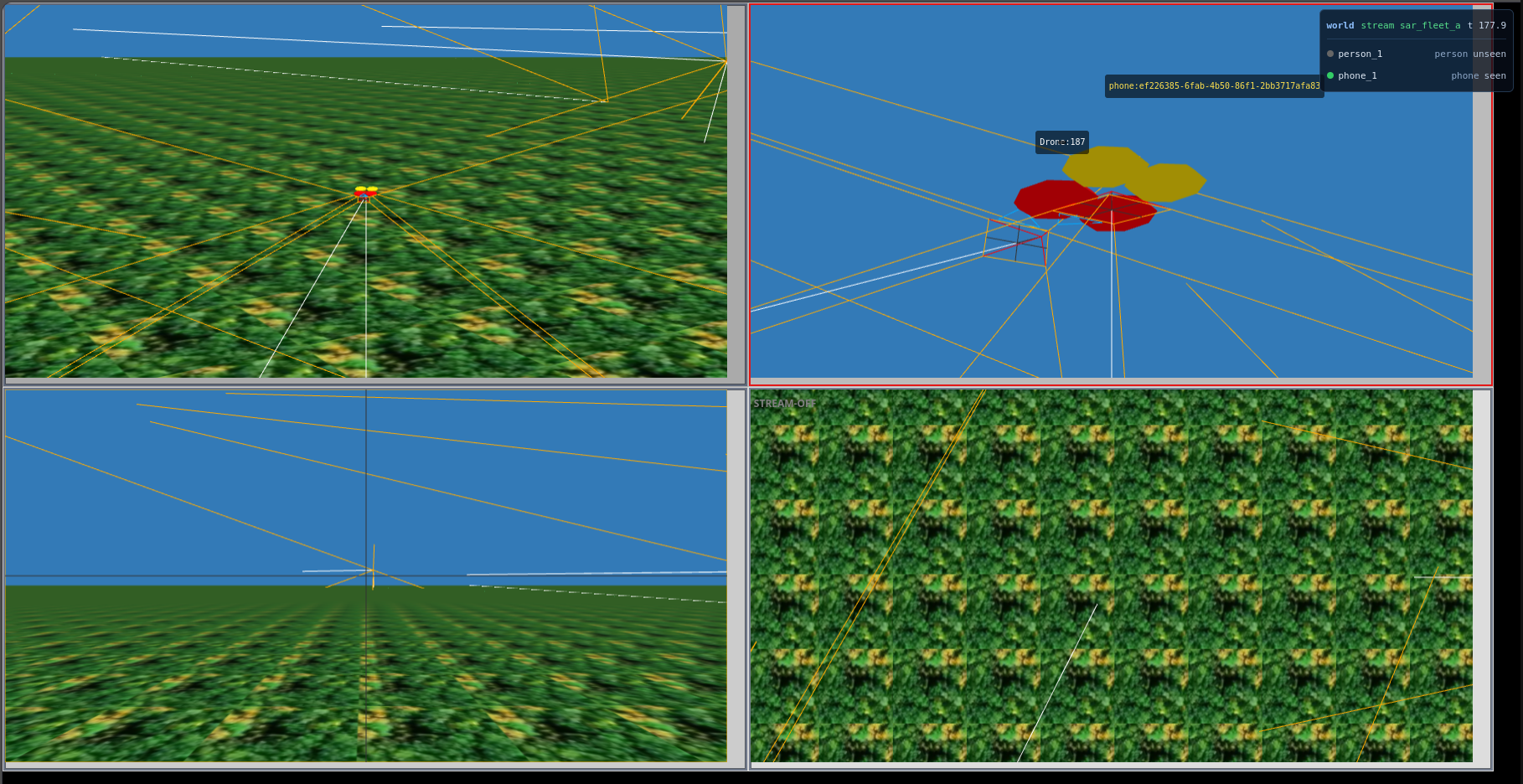
sar_fleet_a in the Mavlink3DMap 3D viewer, with four views. The
panel at the top right shows the world truth: phone_1 is seen,
person_1 is not seen yet.
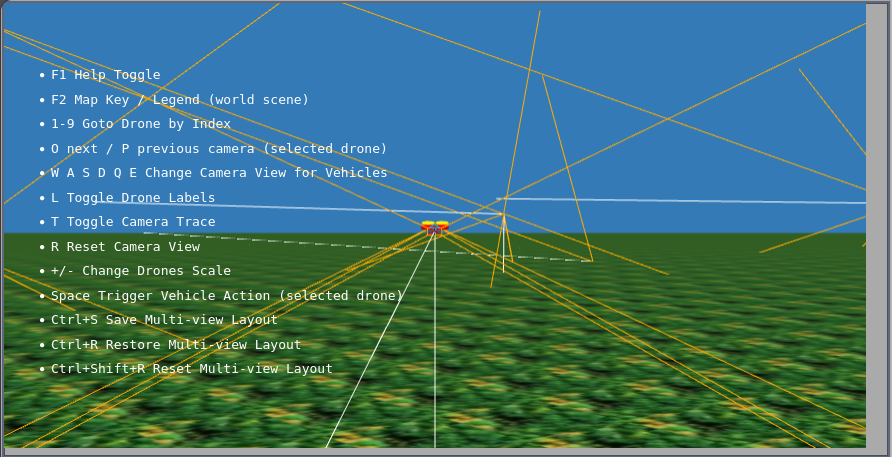
Push F1 in the 3D viewer to show the keys: select a drone (1-9), change the camera (O, P, W A S D Q E), show labels (L) and save the multi-view layout (Ctrl+S).
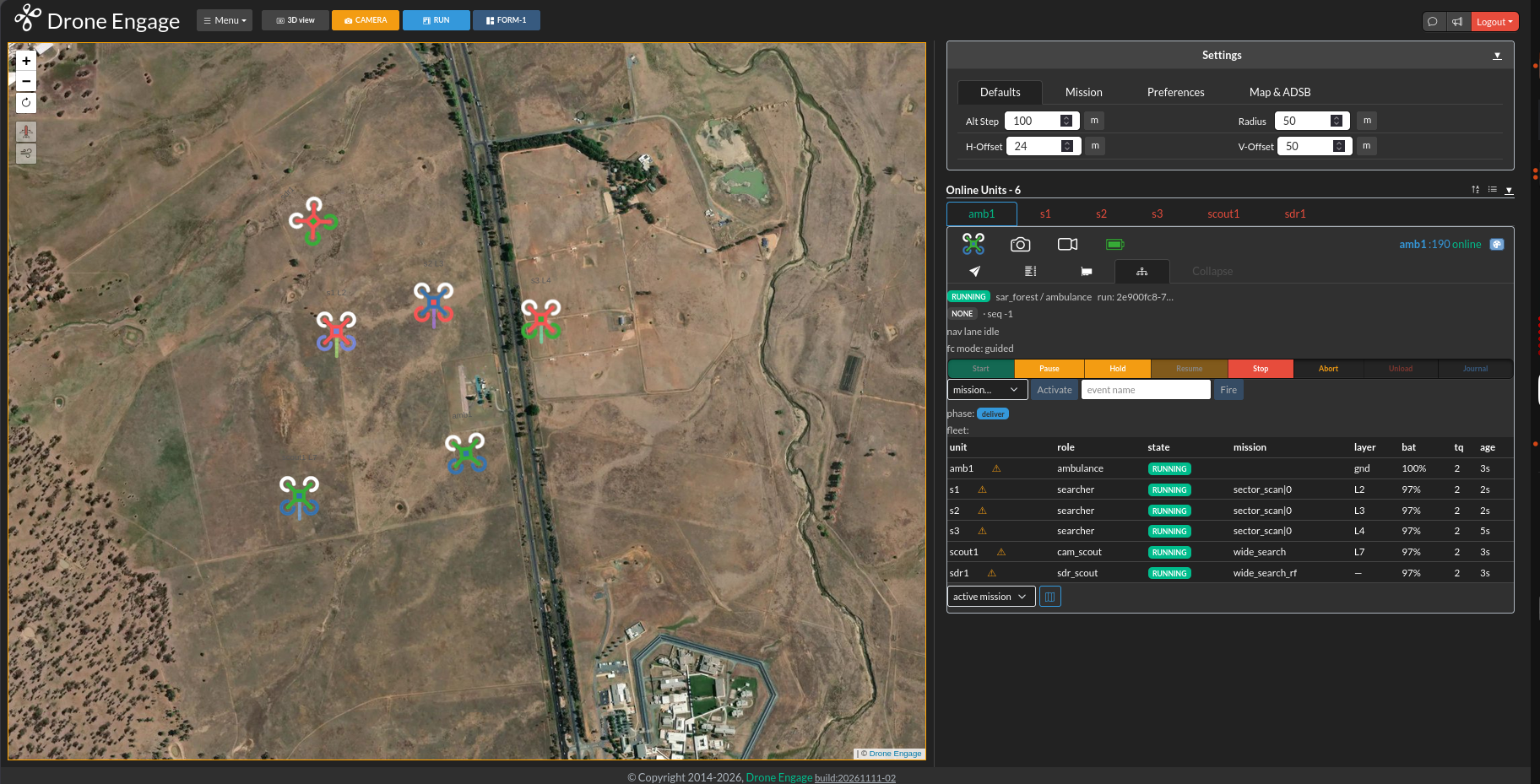
The same demo in the WebClient. The six units (amb1, s1 to
s3, scout1, sdr1) are online. The fleet table shows the
role, state, mission and battery of each unit.
Use your own servers and WebClient
You can show simulated vehicles in your own WebClient. First start the local server stack, then connect a drone, then start the WebClient:
./sim up de_servers
./sim up quadcopter
./sim up de_webclient --open-web
sims/quadcopter.yaml, sims/rover.yaml, sims/plane.yaml and
sims/boat.yaml connect to a server stack that you run. The logins
come from SIM_AUTH_* in sim.local.env, or you can add
--user <email> --password <code> to up.
Important
The unit accounts and the WebClient account must be in the same team. If not, the WebClient does not show the drones.
To let a phone (for example the Andruav app) connect to these servers, give the address that the phone can reach:
./sim up de_servers --out 192.168.1.20
Stop in this order: ./sim down quadcopter, ./sim down, then
./sim down de_servers.
When something goes wrong
Symptom |
Cause and fix |
|---|---|
|
A module is not built. The error gives its name. Run
|
|
This is normal on a cold start. SITL needs 1 to 2 minutes for
GPS/EKF. |
|
Another sim or your own server has the port. |
Login fails on an |
The account does not exist, it is in a different team, or you did more than 10 logins in one minute. Wait one minute and try again. |
Test fails with |
An earlier run left the fleet in the air. Use |
Everything looks stuck |
Do |
Old files use disk space |
|
Next step: Architecture and Design.