RPI Administration Tools
The DE Account Setup screen allows you to configure your DroneEngage account credentials and server settings. This is essential for connecting your drone unit to the DroneEngage cloud services.
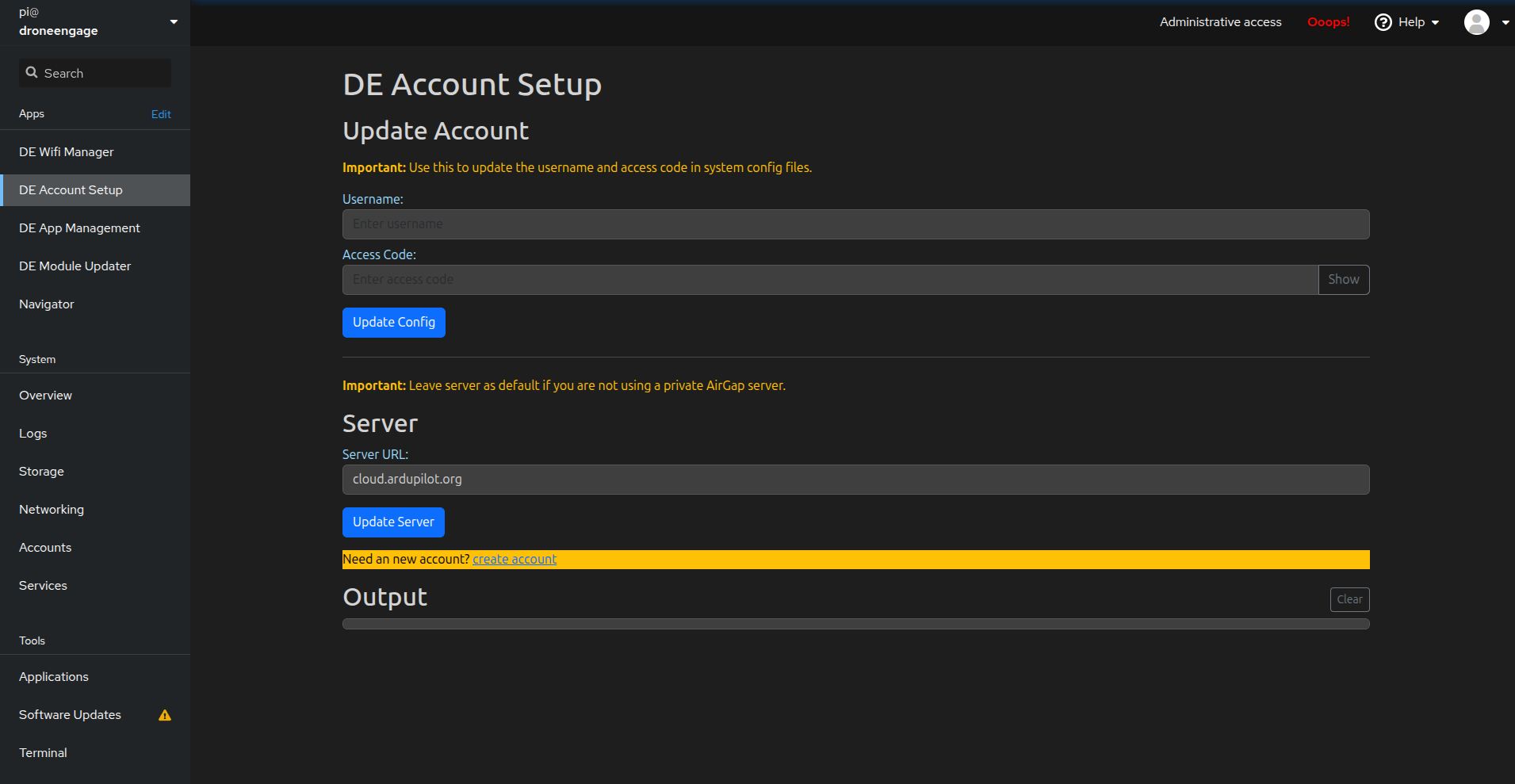
Update Account
This section allows you to update your DroneEngage account credentials in the system configuration files.
Warning
Use this to update the username and access code in system config files.
Fields:
Username - Enter your DroneEngage account username.
Access Code - Enter your DroneEngage account access code. Click the Show button to reveal the access code, or Hide to mask it again.
Actions:
Update Config - Click this button to save the username and access code to the system configuration files. Both fields must be filled in before clicking this button.
Note
The configuration is applied to multiple system files including the main communication module and simulator instances.
Server
This section allows you to configure which DroneEngage server the unit connects to.
Warning
Leave server as default if you are not using a private AirGap server.
Fields:
Server URL - The address of the DroneEngage authentication server. Default value is
cloud.ardupilot.org.
Actions:
Update Server - Click this button to update the server URL in the configuration files. If left empty, it defaults to
cloud.ardupilot.org.
Create New Account
If you don’t have a DroneEngage account yet, click the create account link to open the account registration page in a new browser tab.
The link directs to: https://cloud.ardupilot.org:8001/accounts
Output Area
The Output section displays real-time feedback from configuration operations.
Shows the values being updated (access code is masked for security)
Lists the target configuration files being modified
Displays success or error messages upon completion
Clear button - Clears all output messages from the display
Typical Workflow
Initial Account Setup:
If you don’t have an account, click create account to register on the DroneEngage platform
Enter your Username in the Username field
Enter your Access Code in the Access Code field
Click Update Config to save the credentials
Verify the success message in the Output area
Using a Private AirGap Server:
Enter your account credentials as described above
In the Server section, replace
cloud.ardupilot.orgwith your private server URLClick Update Server to apply the server change
Click Update Config to save your credentials
Updating Credentials:
Enter the new Username and/or Access Code
Click Update Config
The system will update all relevant configuration files automatically
Configuration Files
The account settings are stored in the following configuration files:
/home/pi/drone_engage/de_comm/de_comm.config.module.json- Main communication module/home/pi/simulator/sim_de_mavlink_instances/de_comm.1.config.module.json- Simulator instance 1/home/pi/simulator/sim_de_mavlink_instances/de_comm.2.config.module.json- Simulator instance 2
Note
All configuration files are updated simultaneously to ensure consistency across the system.
Video Tutorials
For step-by-step video guides on using the DE APP Management features, visit the DroneEngage tutorial playlist: