What Is New: DroneEngage Inside
Andruav 15 has a new engine. The phone now runs the real DroneEngage modules, the same modules that run on a Raspberry Pi. Andruav and DroneEngage now use one protocol, one WebClient and one account.
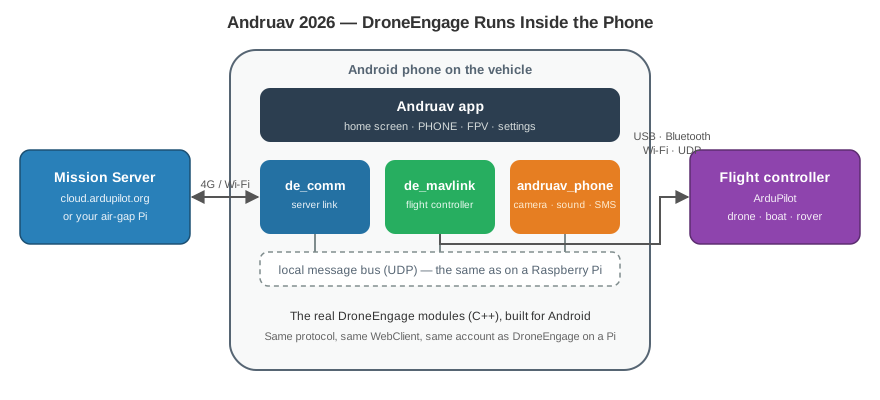
Module |
Job |
|---|---|
|
Connects the phone to the Mission Server ( |
|
Connects to the ArduPilot flight controller. Sends telemetry and receives commands. |
|
Gives the phone parts to the system: the camera, the sound, the flash, the screen and the SMS. |
Tip
Prove your idea on a phone. Ship it on DroneEngage. A mission that works on Andruav works on a DroneEngage Raspberry Pi too. When people depend on the vehicle, move it to a Pi. You keep the same WebClient and the same account.
The Home Screen
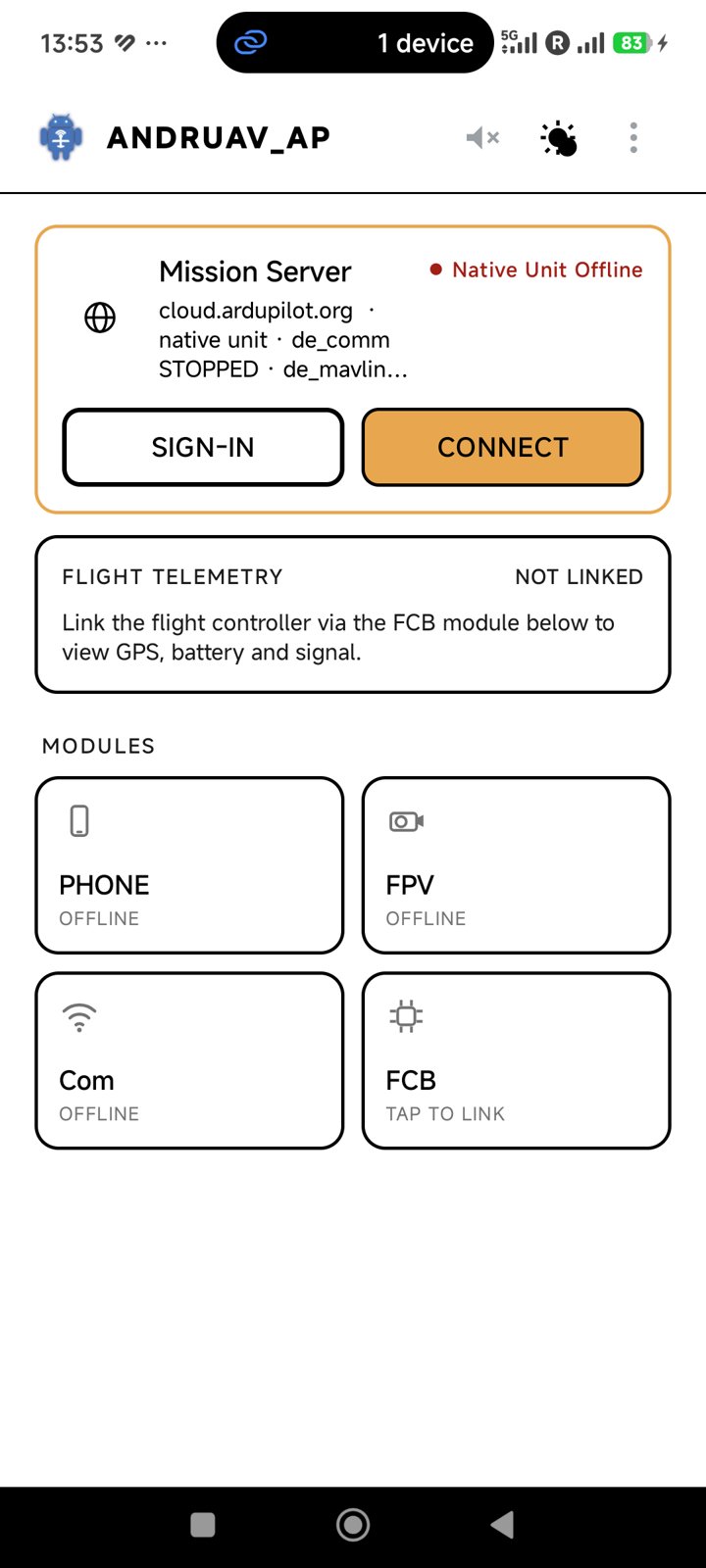
The home screen shows the state of the system on one page.
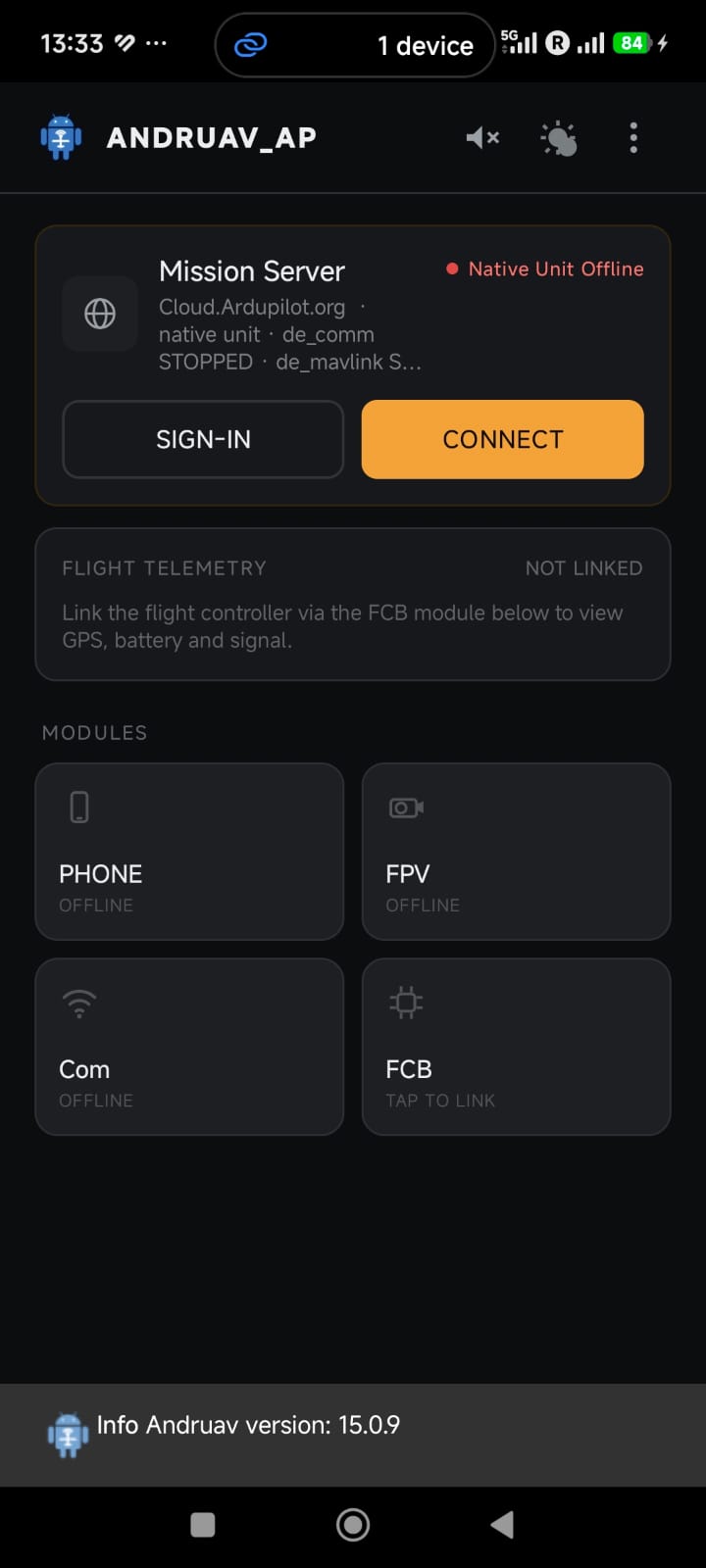
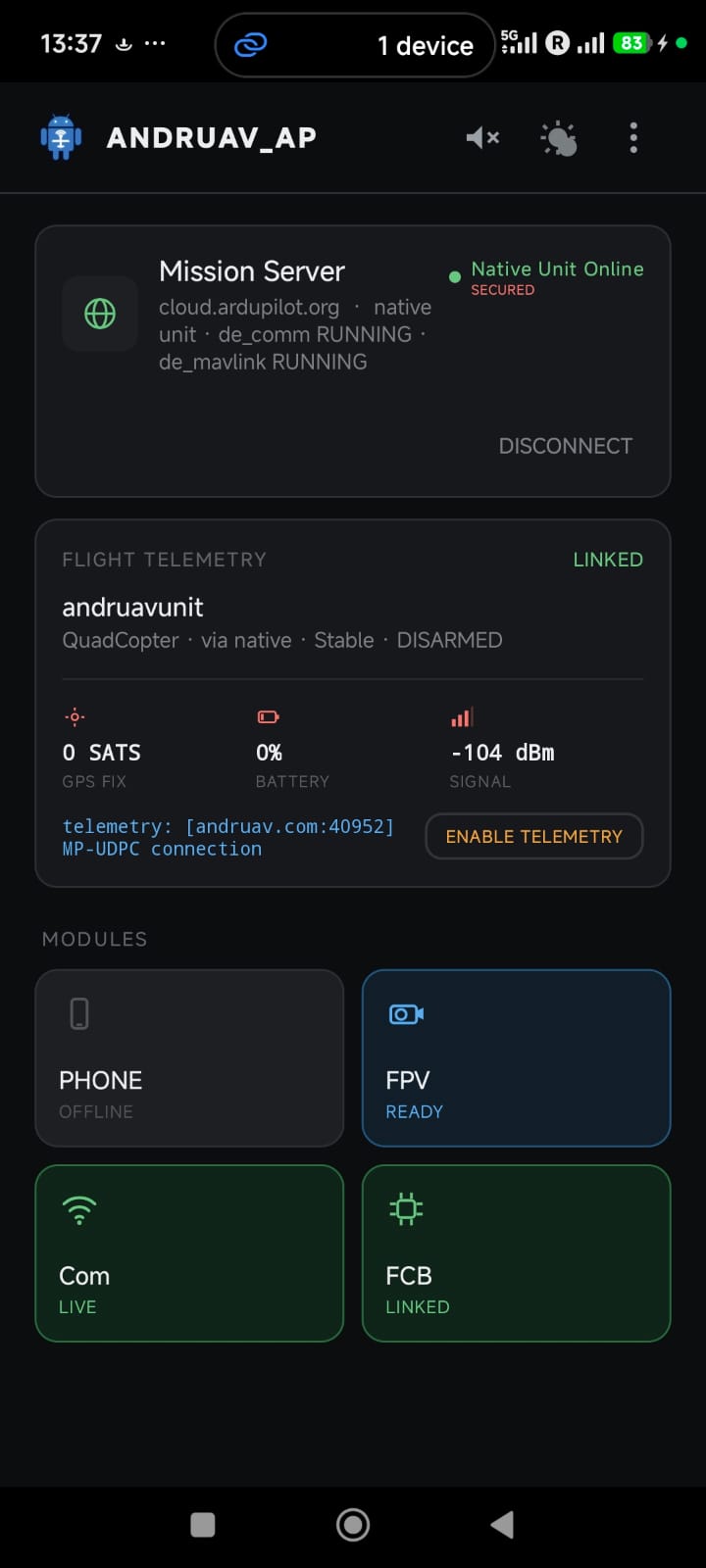
Mission Server card
SIGN-IN opens the account screen. Enter your email and access code.
CONNECT starts
de_commandde_mavlink. The card then shows Native Unit Online and the state of each module.SECURED shows that the phone checks the TLS certificate of the server.
DISCONNECT stops the modules.
Flight Telemetry card
Shows the vehicle type, the link, the flight mode and the arm state.
Shows the GPS satellites, the battery and the signal.
ENABLE TELEMETRY opens a UDP port on the server for Mission Planner or QGroundControl. The card shows the address, for example
andruav.com:40952. Tap again to close it. See Andruav Telemetry.
Modules
Tile |
Tap it to |
|---|---|
PHONE |
Open the phone screen: IMU, GPS and SMS (see below). |
FPV |
Open the camera and the video stream. See Andruav FPV. |
Com |
See the state of the server link. |
FCB |
Connect the flight controller (see below). |
A tile is green when its module is live. A tile is grey when its module is offline.
Connect the Flight Controller
Tap the FCB tile. Select the link that your vehicle uses:
Bluetooth
USB
Wi-Fi / TCP-IP
UDP Broadcast — Andruav listens on a local port, for example
14550.
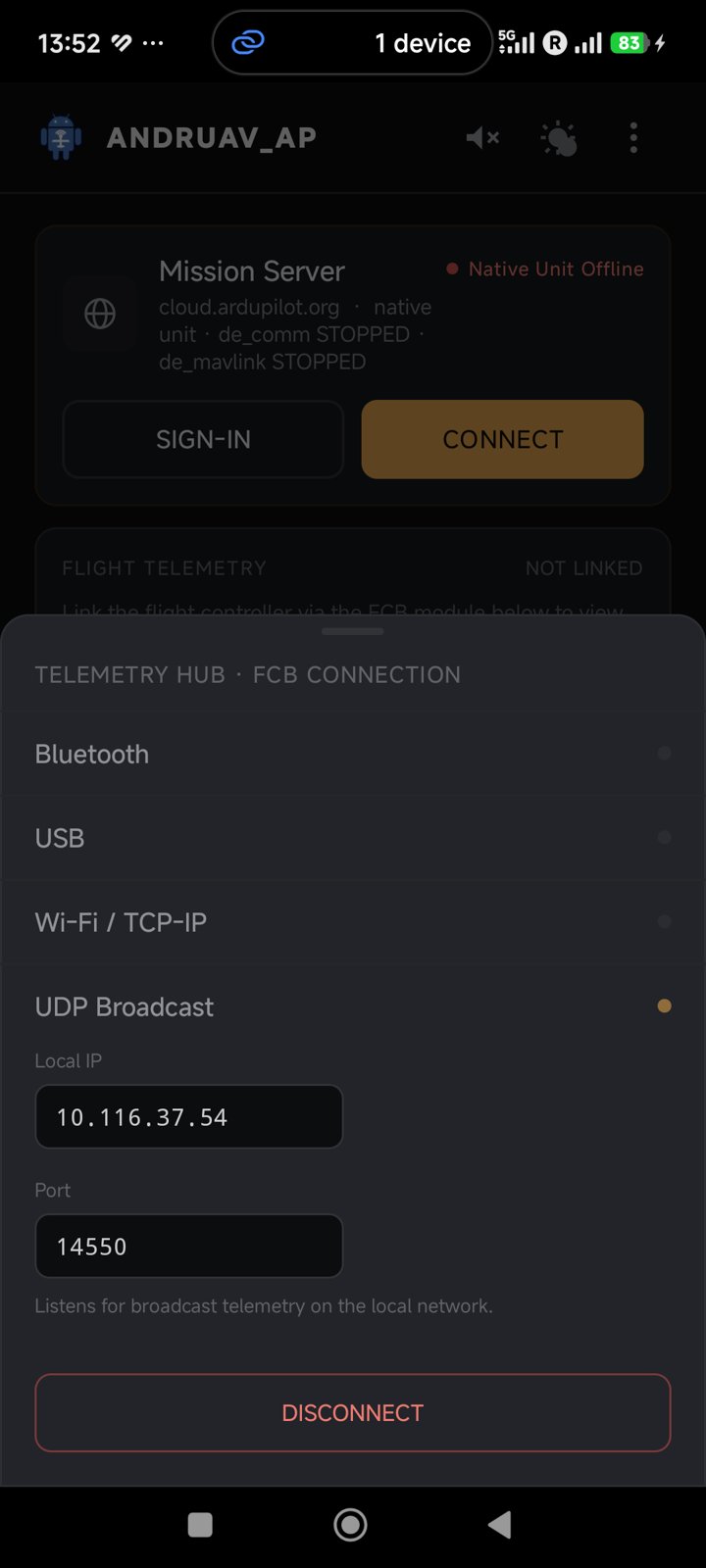
The WebClient can also send a connect command to the FCB. The phone then links the FCB in the same way.
The PHONE Screen
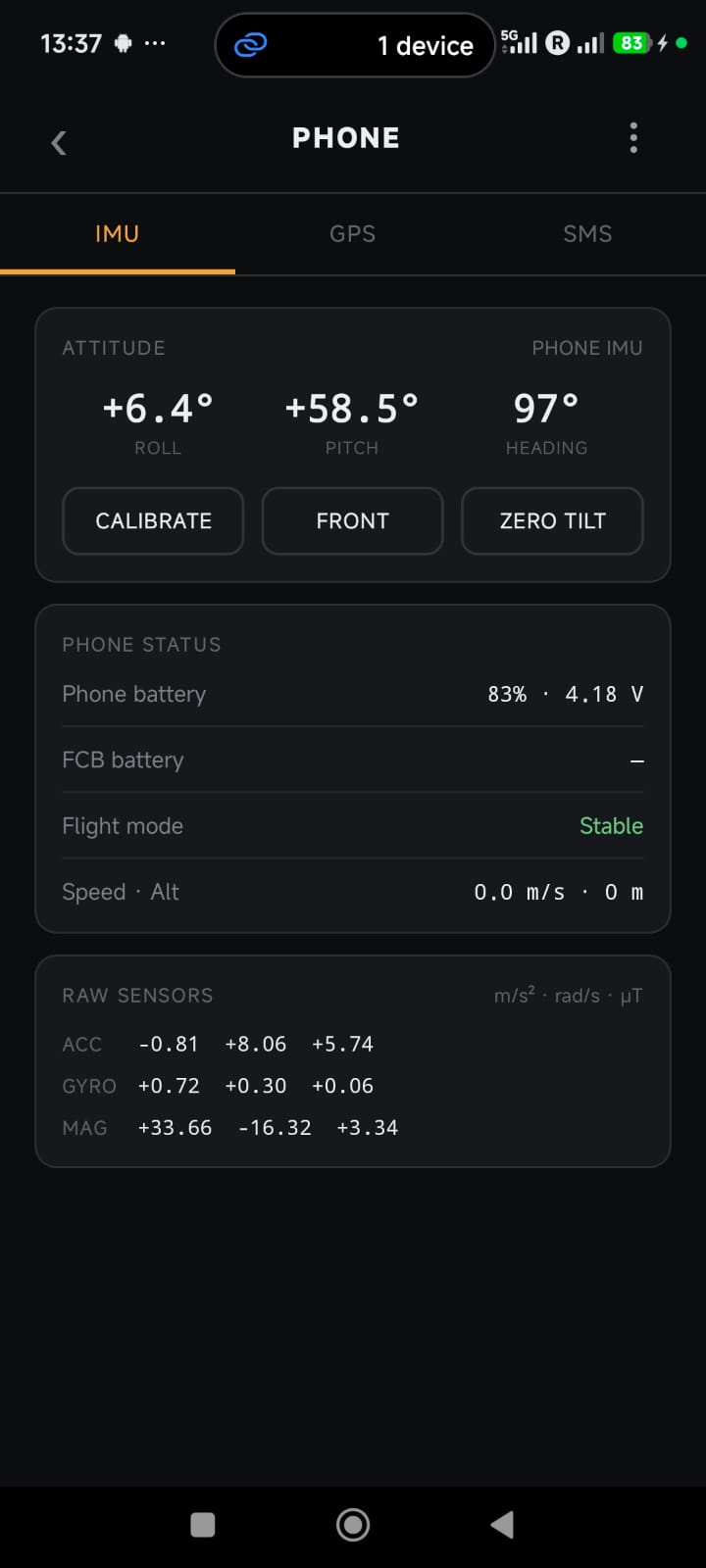
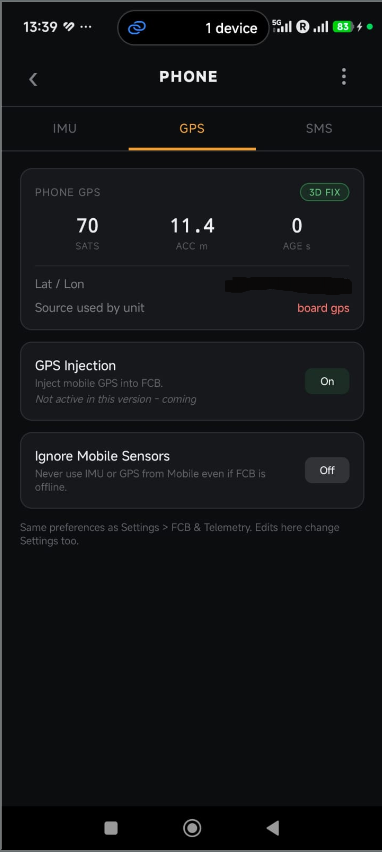
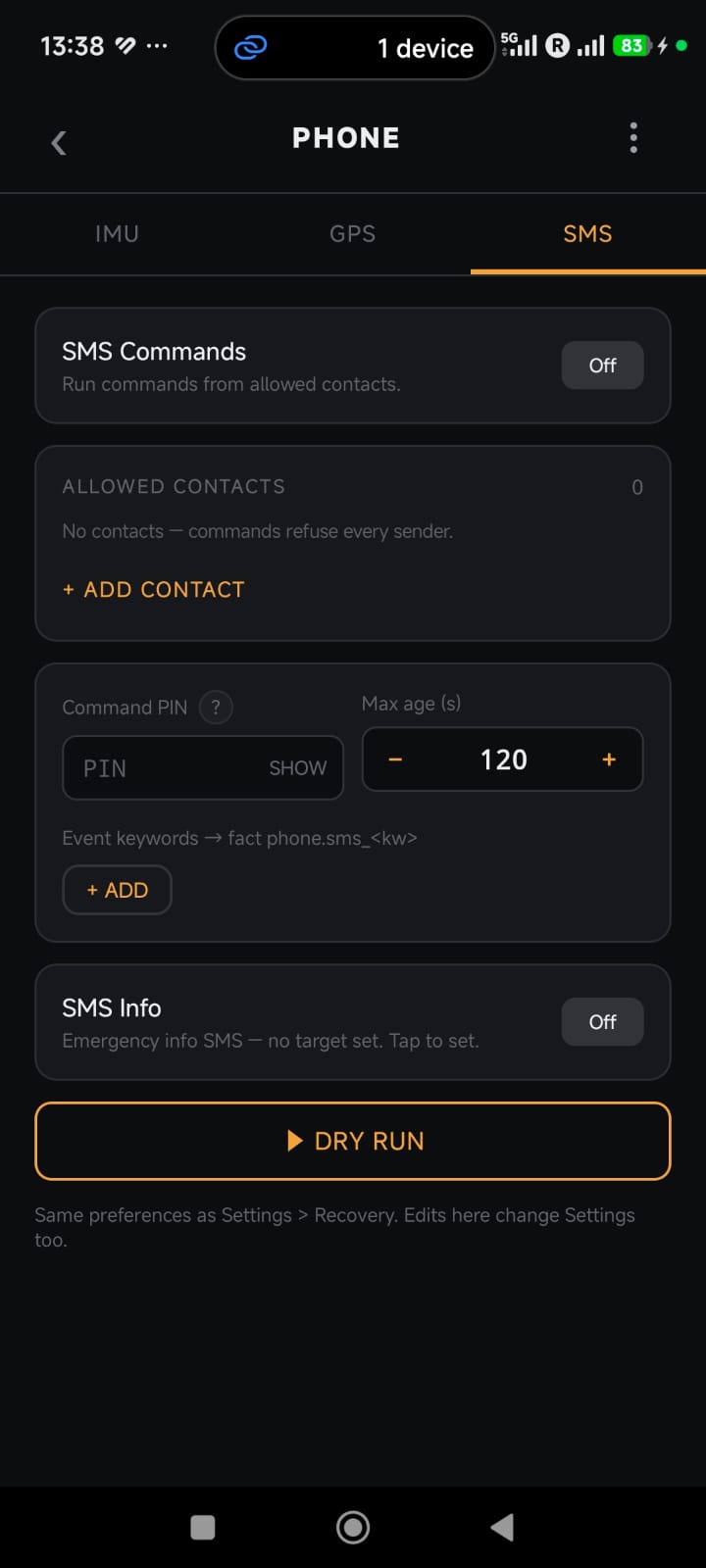
Tap the PHONE tile. The screen has three tabs.
IMU tab
Shows the roll, the pitch and the heading of the phone.
CALIBRATE, FRONT and ZERO TILT set how the phone is mounted on the vehicle.
Shows the phone battery, the FCB battery, the flight mode, the speed and the altitude.
Shows the raw values of the accelerometer, the gyroscope and the compass.
GPS tab
Shows the phone GPS fix: the satellites, the accuracy and the age.
Shows which GPS the unit uses: the board GPS or the phone GPS.
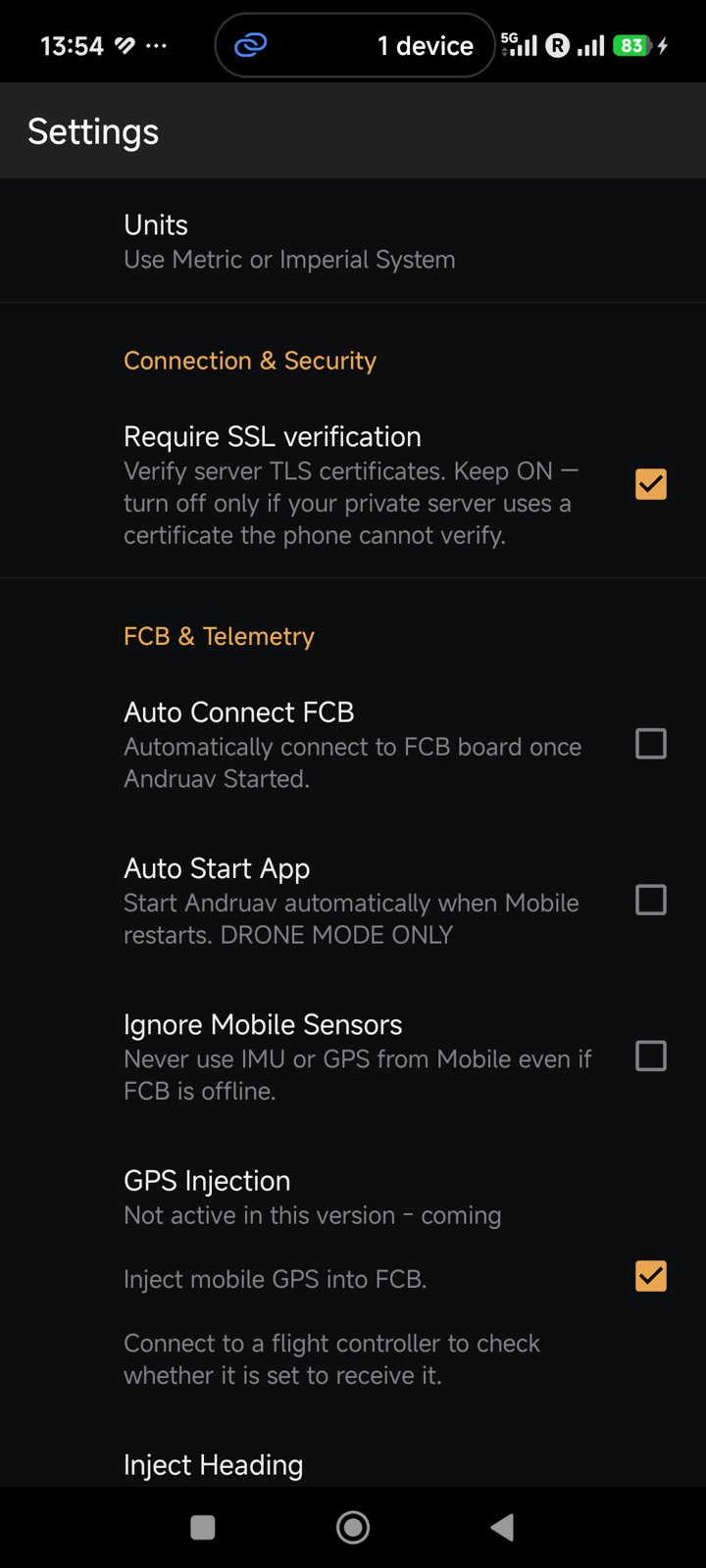
GPS Injection — coming. It is not active in this version. See Andruav GPS Injection.
Ignore Mobile Sensors — never use the IMU or the GPS of the phone.
SMS tab
Control the vehicle with SMS when there is no internet. See Andruav SMS Reporting & Control.
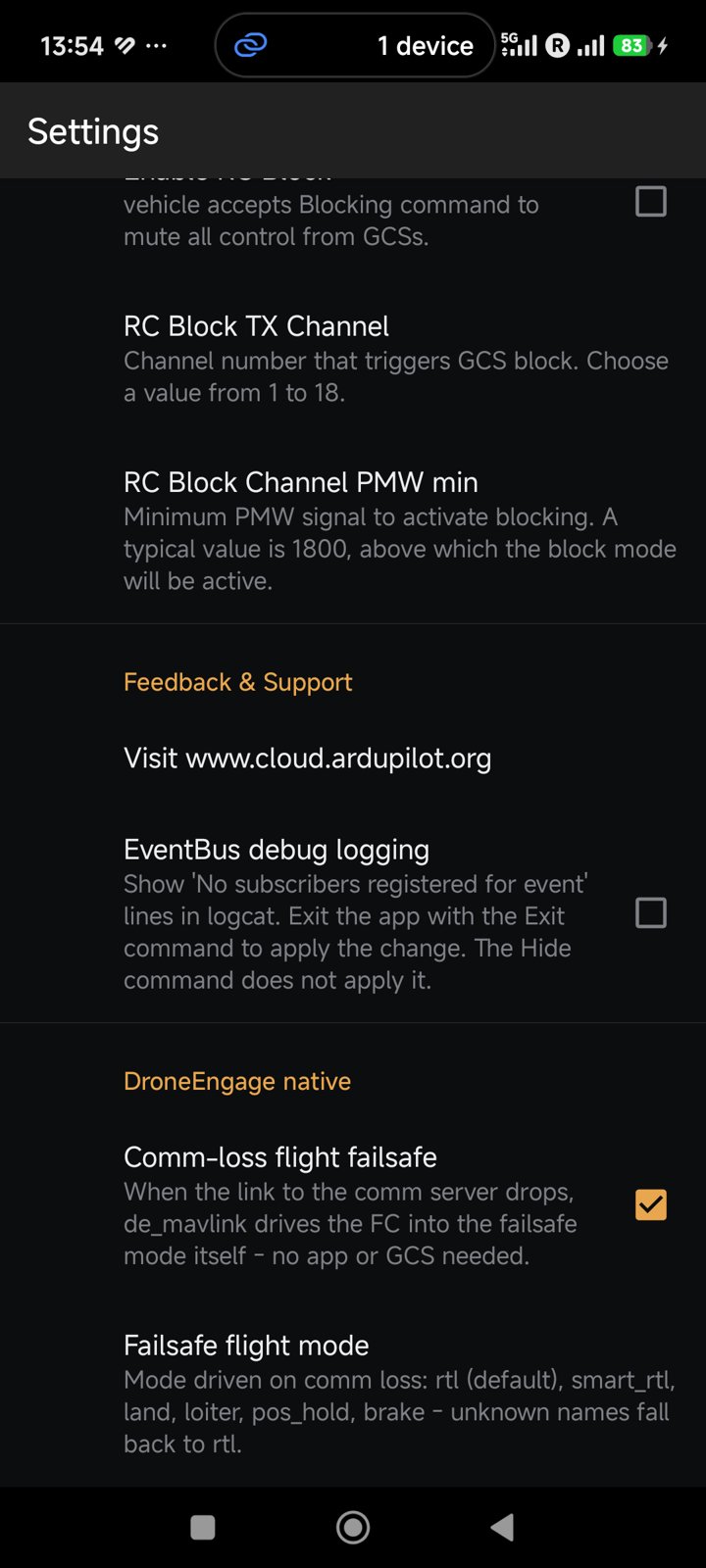
Comm-Loss Failsafe
When the link to the server stops, de_mavlink sets the flight
controller to a failsafe mode. It does this on the phone itself. It does not
need the app screen or a ground station.
Open Settings.
Go to DroneEngage native.
Turn on Comm-loss flight failsafe.
In Failsafe flight mode, select the mode:
rtl(default),smart_rtl,land,loiter,pos_holdorbrake.
Warning
Test the failsafe in SITL or on the ground first. See Andruav Simulation using SITL.
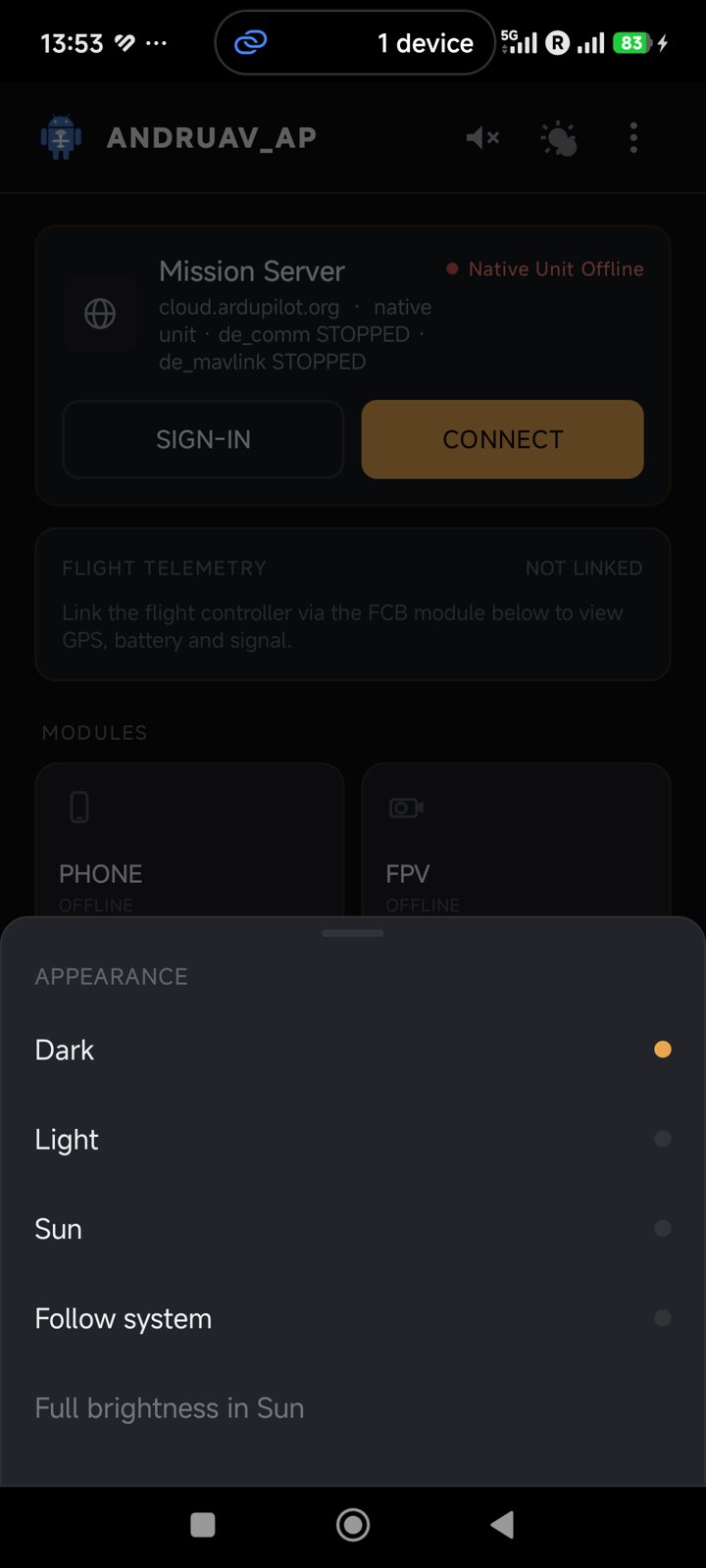
Themes for Outdoor Use
Open the menu (⋮) and tap Theme. Select:
Dark — the default.
Light
Sun — high contrast and larger text for direct sunlight. You can also set Full brightness in Sun.
Follow system
Settings
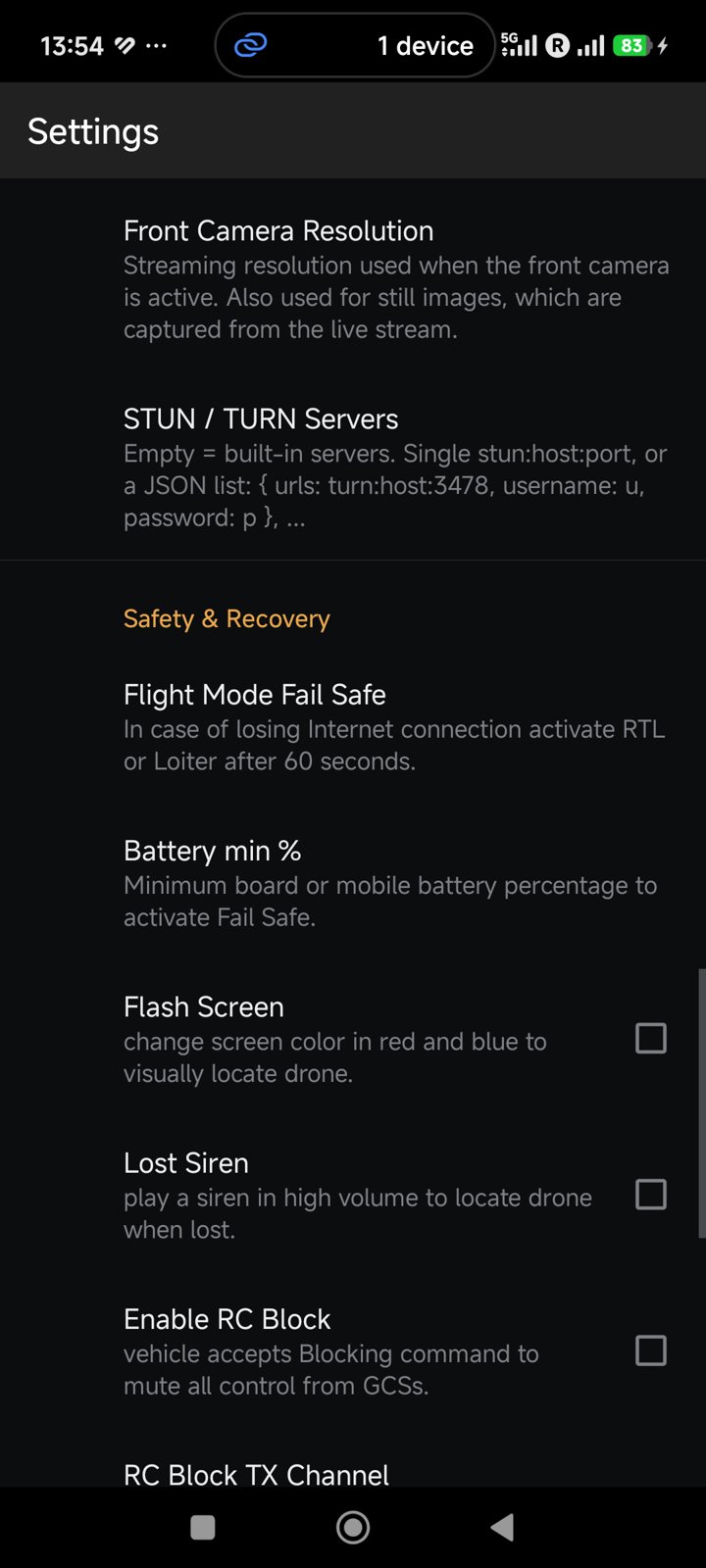
The settings are in groups. The main groups are:
Group |
What you set |
|---|---|
Connection & Security |
Require SSL verification. Keep it on. Turn it off only for a private server whose certificate the phone cannot check. |
FCB & Telemetry |
Auto connect the FCB, auto start the app, ignore the phone sensors, GPS injection (coming). |
NTRIP / RTK |
Caster, port, mountpoint and account (coming). |
FPV & Settings |
The camera, the resolution, the RC camera switch, and the STUN / TURN servers for video. |
Safety & Recovery |
Flight mode failsafe, minimum battery, flash screen and lost siren to find a lost vehicle, RC block. |
DroneEngage native |
Comm-loss flight failsafe and its flight mode. |
Permissions
At the first start, Andruav asks for permissions. Andruav needs them for these features:
Permission |
Used for |
|---|---|
|
FPV video and photos. |
|
The phone GPS. |
|
SMS commands and SMS info. |
|
The mobile signal level. |
|
Saved photos, videos and sound files. |
|
The notification that keeps Andruav on in the background. |
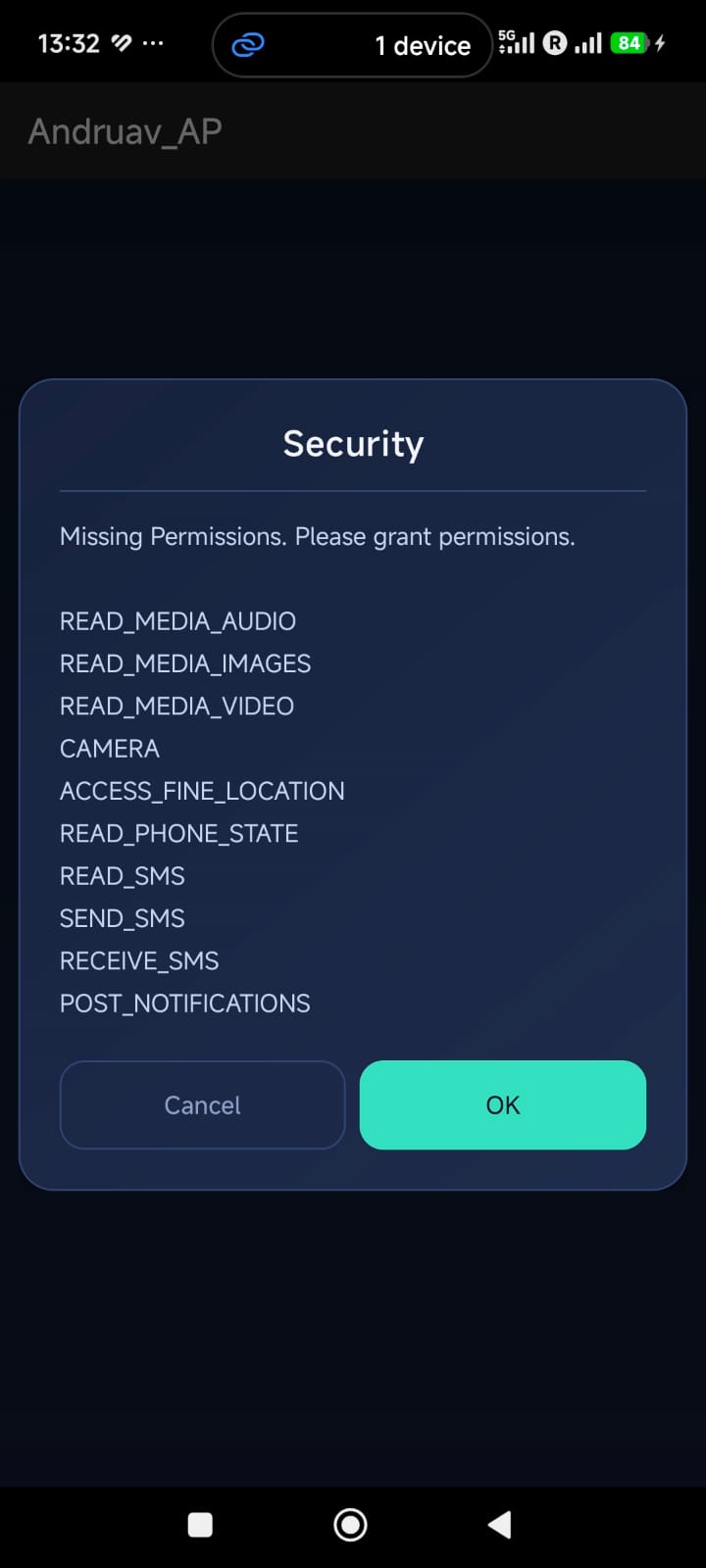
Tap OK and give each permission in the Android dialogs.