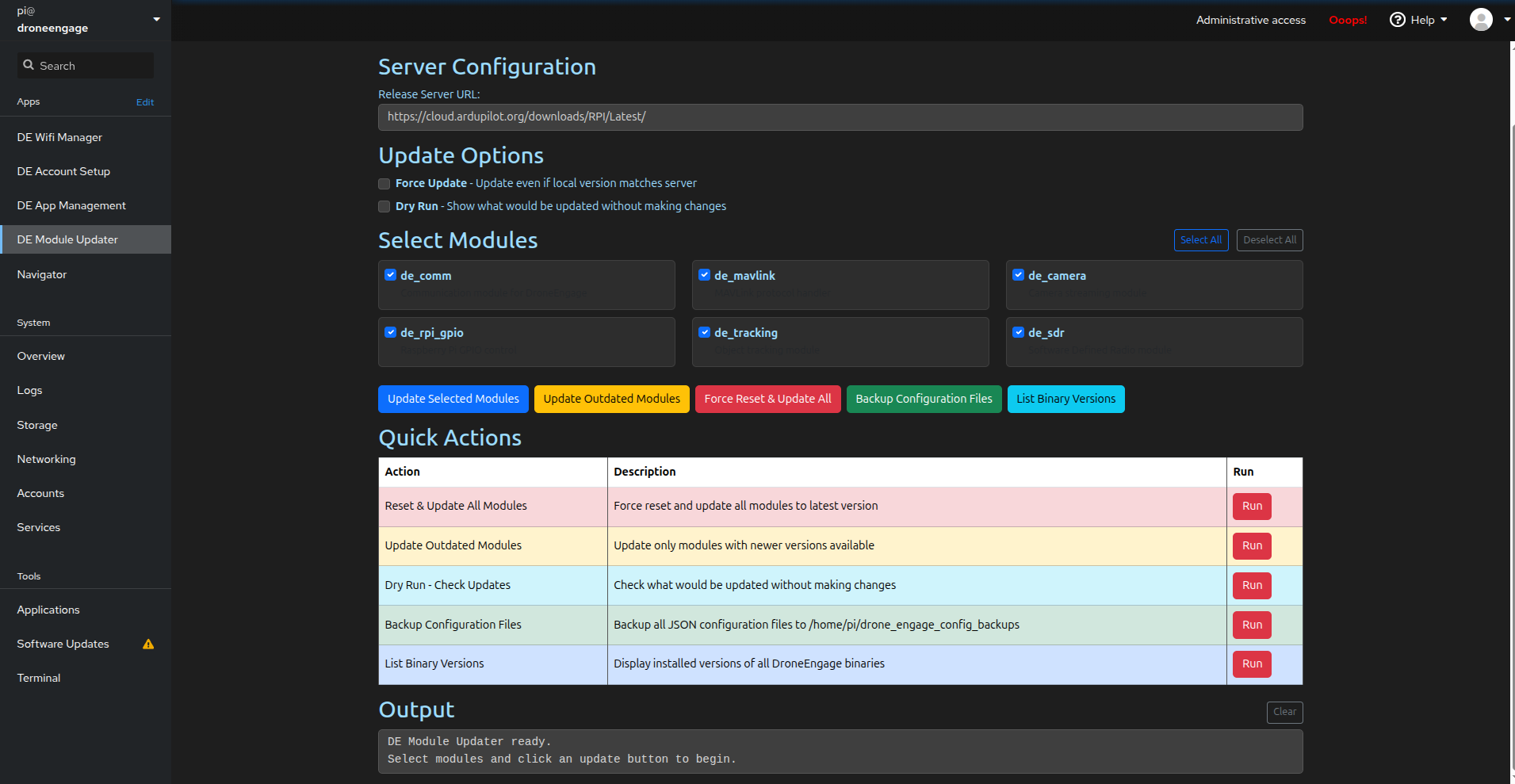
DE Module Updater
The DE Module Updater screen allows you to update, manage, and maintain DroneEngage software modules on your unit. You can update individual modules, perform bulk updates, backup configurations, and check installed versions.
Warning
This tool updates DroneEngage modules from the release server. Use with caution and always backup your configuration files before performing updates.
Danger
CRITICAL: Configuration Reset After Update
When a module is updated, the new version comes with fresh default configuration files. Your previous settings (account credentials, server URLs, custom parameters) will NOT be preserved automatically.
After updating, you MUST either:
Reconfigure the module using the WebAdmin interface (recommended), or
Manually restore specific fields from your backup configuration files
Warning
Do NOT simply overwrite the new config files with old backups! New module versions may contain new required fields or changed parameter formats. Overwriting with old files may cause the module to malfunction.
Best Practice: Use the WebAdmin interface to reconfigure modules after updates, or carefully copy only the specific fields you need (such as account credentials) from the backup to the new configuration file.
Server Configuration
Release Server URL - The URL where DroneEngage module binaries are hosted.
Default:
https://cloud.ardupilot.org/downloads/RPI/Latest/Only change this if you are using a private or custom release server
Update Options
These checkboxes modify the behavior of update operations:
Force Update - When enabled, updates modules even if the local version matches the server version. Useful for reinstalling or repairing modules.
Dry Run - When enabled, shows what would be updated without actually making any changes. Use this to preview updates before applying them.
Select Modules
This section displays all available DroneEngage modules with checkboxes to select which ones to update.
Available Modules:
Module |
Description |
|---|---|
de_comm |
Communication module for DroneEngage - handles server connectivity |
de_mavlink |
MAVLink protocol handler - communicates with flight controllers |
de_camera |
Camera streaming module - manages video feeds |
de_rpi_gpio |
Raspberry Pi GPIO control - hardware pin management |
de_tracking |
Object tracking module - visual tracking capabilities |
de_sdr |
Software Defined Radio module - radio communication features |
Selection Controls:
Select All - Checks all module checkboxes
Deselect All - Unchecks all module checkboxes
Quick Actions
The Quick Actions table provides one-click access to common operations:
Action |
Description |
|---|---|
Reset & Update All Modules (Red) |
Force reset and update all modules to the latest version |
Update Outdated Modules (Yellow) |
Update only modules with newer versions available |
Dry Run - Check Updates (Cyan) |
Check what would be updated without making changes |
Backup Configuration Files (Green) |
Backup all JSON configuration files |
List Binary Versions (Blue) |
Display installed versions of all DroneEngage binaries |
Output Area
The Output section displays real-time feedback from all operations.
Shows the exact command being executed
Displays progress and results in real-time
Reports success or error messages upon completion
Clear button - Clears all output messages from the display
Automatic Module Backups
Important
Before each module update, the system automatically creates a complete backup of the existing module folder as a compressed tar archive. This ensures you can always roll back to a previous version if needed.
Backup Location:
/home/pi/drone_engage_backups/
Backup Naming Format:
<module_name>_<YYYYMMDD>_<HHMMSS>.tar.gz
Example backup files:
/home/pi/drone_engage_backups/
├── de_camera_20251203_172624.tar.gz
├── de_comm_20251203_172630.tar.gz
├── de_mavlink_20251203_172634.tar.gz
├── de_sdr_20251203_172638.tar.gz
└── de_tracking_20251203_172641.tar.gz
Each backup contains the complete module folder from before the update, including binaries and any local configuration files.
Tip
To restore a previous module version, extract the corresponding tar.gz file back to its original location. For example:
cd /home/pi/drone_engage/
tar -xzf ~/drone_engage_backups/de_comm_20251203_172630.tar.gz
Configuration File Backups
Use the Backup Configuration Files button to create a snapshot of all JSON configuration files from every module. This is useful before making manual configuration changes or major updates.
Configuration Backup Location:
/home/pi/drone_engage_config_backups/
Backup Structure:
Each backup is stored in a timestamped folder containing the configuration files organized by module:
/home/pi/drone_engage_config_backups/
└── 2025-12-03_17-27-32/
    ├── de_ai_tracker/
    │   └── de_ai_tracker.config.module.json
    ├── de_camera/
    │   ├── de_camera.config.module.json
    │   └── template.json
    ├── de_comm/
    │   ├── de_comm.config.module.json
    │   └── template.json
    ├── de_gpio/
    │   └── de_rpi_gpio.config.module.json
    ├── de_mavlink/
    │   ├── de_mavlink.config.module.json
    │   └── template.json
    ├── de_rpi_gpio/
    │   └── de_rpi_gpio.config.module.json
    ├── de_sdr/
    │   └── de_sdr.config.module.json
    └── de_tracking/
        └── de_tracker.config.module.json
Backed Up Files Include:
*.config.module.json- Main configuration files for each moduletemplate.json- Template files where applicable
Backup Summary
Note
The system provides two types of backups stored in different locations:
Type |
Location |
Contents |
|---|---|---|
Module Backups |
|
Complete module folders as tar.gz (automatic before each update) |
Config Backups |
|
JSON configuration files only (manual via button) |
Post-Update Configuration
Danger
IMPORTANT: You must reconfigure modules after updating!
After a module update, the new version contains default configuration files with no user data. Your previous settings are NOT automatically migrated.
Recommended Approach - Use WebAdmin:
Open the DroneEngage WebAdmin interface
Navigate to the updated module’s configuration section
Re-enter your settings (account credentials, server URLs, etc.)
Save the configuration
Restart the module
Alternative Approach - Manual Field Copy:
If you prefer to restore from backup files:
Open the new configuration file (e.g.,
de_comm.config.module.json)Open your backup configuration file from
/home/pi/drone_engage_config_backups/Carefully copy only the specific fields you need (e.g.,
userName,accessCode,auth_ip)Do NOT replace the entire file - new versions may have new required fields
Save and restart the module
Fields Commonly Needing Restoration:
Account credentials (
userName,accessCode)Server URLs (
auth_ip)Custom port configurations
Module-specific settings you have customized
Warning
New module versions often introduce:
New configuration fields (required for new features)
Changed parameter names or formats
Removed deprecated options
Blindly overwriting new config files with old backups may cause modules to fail or behave unexpectedly.
Typical Workflows
Checking for Available Updates:
Click Dry Run - Check Updates in Quick Actions (or enable Dry Run checkbox)
Review the output to see which modules have updates available
Decide whether to update all or select specific modules
Updating All Outdated Modules:
Click Backup Configuration Files first (required)
Click Update Outdated Modules
The system automatically backs up each module before updating
Wait for the update process to complete
Verify success in the Output area
Reconfigure each updated module via WebAdmin or manual field copy
Updating Specific Modules:
Click Backup Configuration Files first
Use Deselect All to clear all checkboxes
Check only the modules you want to update
Click Update Selected Modules
Monitor progress in the Output area
Reconfigure the updated modules
Fresh Installation / Repair:
Click Backup Configuration Files to save your settings
Click Force Reset & Update All
Confirm the action when prompted
All modules will be reinstalled from the server
Reconfigure all modules using WebAdmin
Rolling Back an Update:
Navigate to
/home/pi/drone_engage_backups/Identify the backup file for the module you want to restore
Extract the tar.gz file to restore the previous version
Restart DroneEngage services
Your old configuration will be restored along with the old binary
Before Major Updates:
Click List Binary Versions to document current versions
Click Backup Configuration Files to save configurations
Proceed with your update operation
If issues occur, restore from the backups
Video Tutorials
For step-by-step video guides on updating DroneEngage modules, visit the tutorial playlist: