Drone Engage RPI Image Tools - Terminal
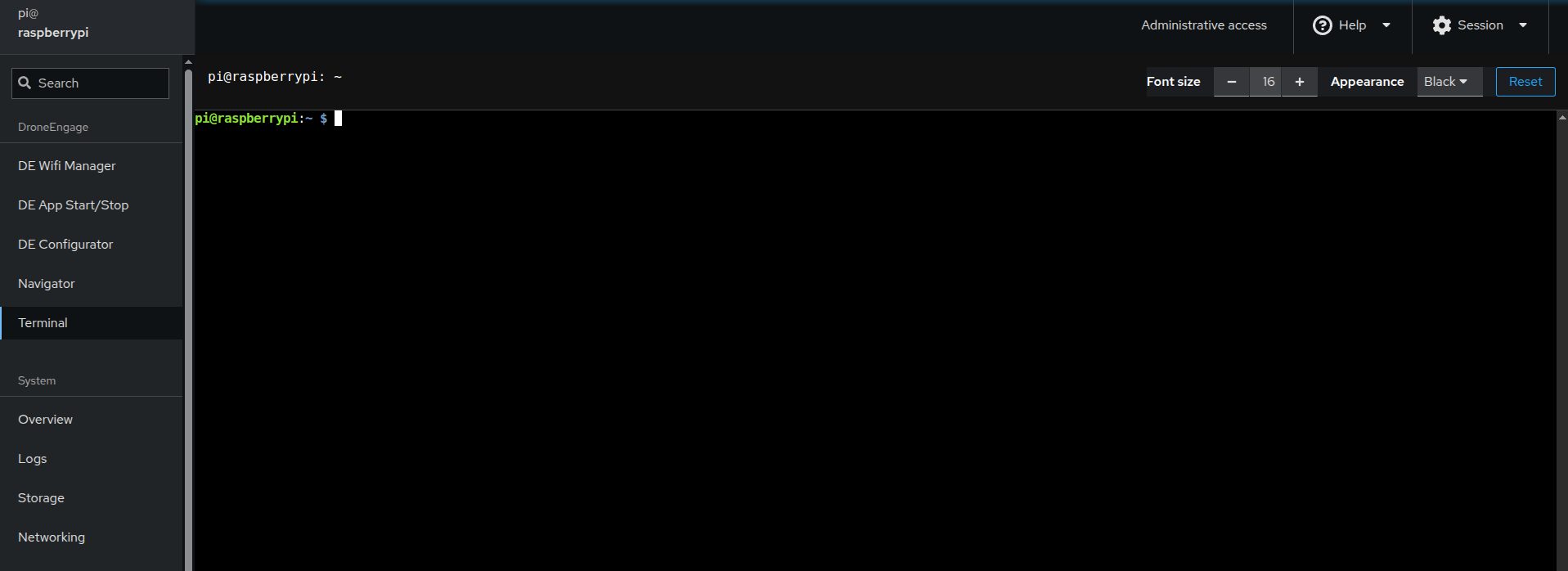
This is a web SSH terminal for the RPI image. It allows you to run Linux commands directly on your Raspberry Pi. This guide is designed for beginners who need to manage DroneEngage modules.
DroneEngage Directory Structure
All DroneEngage modules are installed in the ~/drone_engage directory.
List all DroneEngage modules:
ls ~/drone_engage
Navigate to DroneEngage home:
cd ~/drone_engage
Managing DroneEngage Services
DroneEngage modules run as systemd services. Here are the essential commands to manage them:
Checking Service Status
Check if Communication Module is running:
sudo systemctl status de_comm
Check if Camera Module is running:
sudo systemctl status de_camera
Check if Mavlink Module is running:
sudo systemctl status de_mavlink
Tip
A service is running if you see active (running) in green. Press q to exit the status view.
Starting and Stopping Services
Start a service:
sudo systemctl start de_comm
sudo systemctl start de_camera
sudo systemctl start de_mavlink
Stop a service:
sudo systemctl stop de_comm
sudo systemctl stop de_camera
sudo systemctl stop de_mavlink
Restart a service (useful after configuration changes):
sudo systemctl restart de_comm
sudo systemctl restart de_camera
sudo systemctl restart de_mavlink
Enabling/Disabling Auto-Start
Enable a service to start automatically on boot:
sudo systemctl enable de_comm
sudo systemctl enable de_camera
sudo systemctl enable de_mavlink
Disable a service from starting on boot:
sudo systemctl disable de_comm
sudo systemctl disable de_camera
sudo systemctl disable de_mavlink
Viewing Logs
Logs are essential for troubleshooting. Use these commands to view service logs:
View recent logs for a service:
sudo journalctl -u de_comm -n 50
Follow logs in real-time (live view):
sudo journalctl -u de_comm -f
View logs since last boot:
sudo journalctl -u de_comm -b
Tip
Replace de_comm with de_camera or de_mavlink to view logs for other modules. Press Ctrl+C to stop following logs.
System Commands
Reboot and Shutdown
Reboot the Raspberry Pi:
sudo reboot
Shutdown the Raspberry Pi:
sudo shutdown now
Schedule a reboot in 5 minutes:
sudo shutdown -r +5
Checking System Resources
Check disk space:
df -h
Check memory usage:
free -h
View running processes:
htop
Note
Press q to exit htop.
Check CPU temperature:
vcgencmd measure_temp
Network Commands
Check IP address:
ip addr
Check network connectivity:
ping -c 4 google.com
Restart networking:
sudo systemctl restart networking
Manually Running Modules
In some cases, you may need to run modules manually for debugging purposes.
Manually start Communication Module:
cd ~/drone_engage/de_comm
sudo ./de_comm.so
Manually start Camera Module:
cd ~/drone_engage/de_camera
sudo ./de_camera64.so
Manually start Mavlink Module:
cd ~/drone_engage/de_mavlink
sudo ./de_mavlink.so
Warning
Before running modules manually, make sure to stop the corresponding systemd service first using sudo systemctl stop <service_name>.
Quick Reference Table
Task |
Command |
|---|---|
Check service status |
|
Start a service |
|
Stop a service |
|
Restart a service |
|
View service logs |
|
Follow logs live |
|
Reboot system |
|
Shutdown system |
|
Check disk space |
|
Check memory |
|
Check IP address |
|