Admin Web Interface
The Andruav Authenticator includes a web-based admin interface for monitoring and managing the authentication server, registered users, and connected communication servers.
Overview
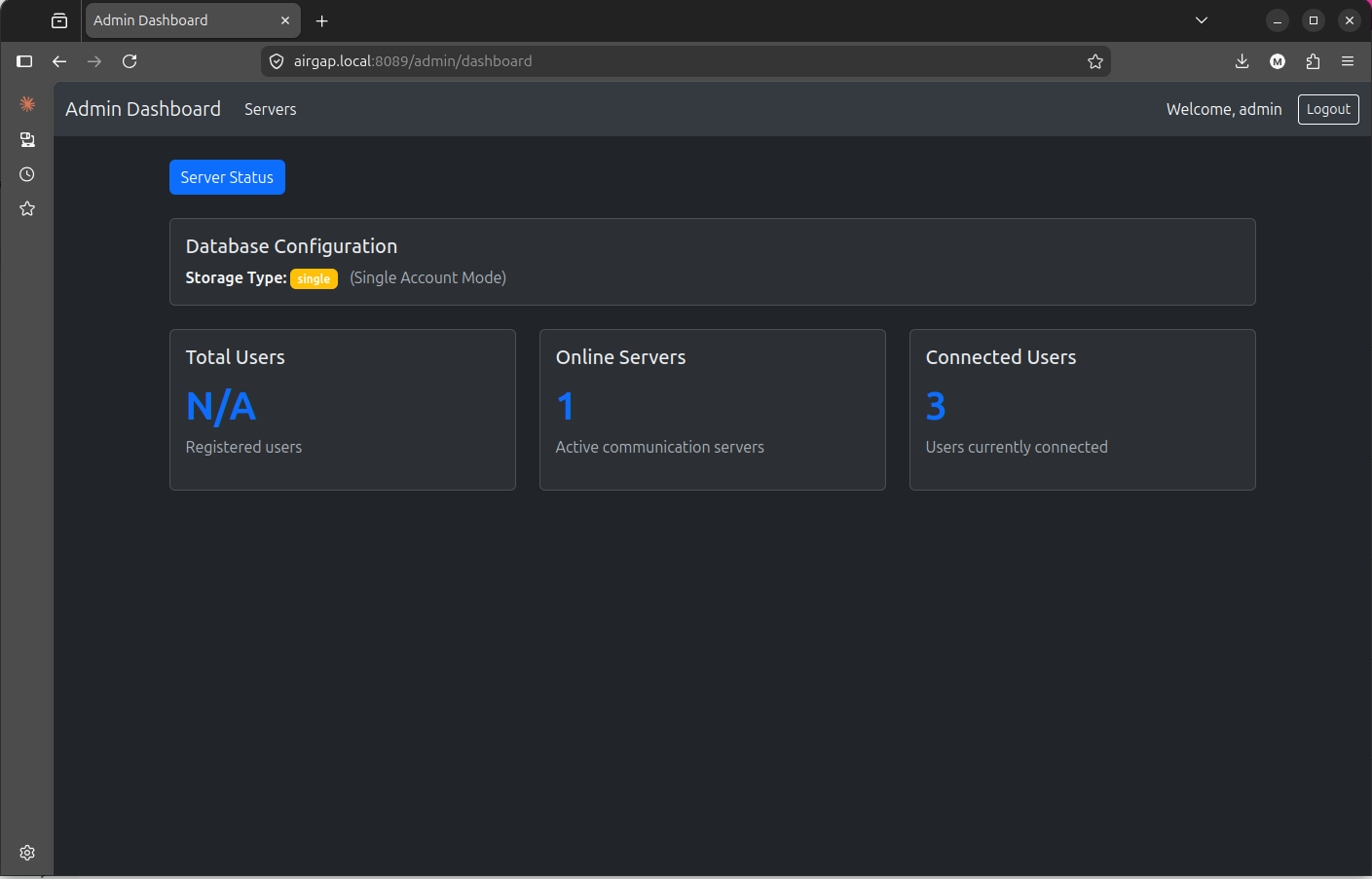
The admin interface provides a real-time dashboard for:
Viewing system statistics (total users, online servers, connected users)
Managing user accounts (file-based or database storage)
Monitoring communication server status and connected users
Viewing database configuration
Access
To access the admin interface:
Navigate to
https://<auth-server-host>:<webadmin_port>Login with the credentials configured in
server.config
Default credentials (change in production):
Username:
adminPassword:
admin123
Features
Dashboard
The main dashboard displays:
Database Configuration: Shows the current storage type (single/file/db) with a descriptive badge
Total Users: Count of registered users (varies by storage type)
Online Servers: Number of active communication servers connected via S2S
Connected Users: Total users currently connected across all servers
Statistics auto-refresh every 30 seconds.
User Management
The user management interface varies based on the account_storage_type configuration:
File-Based Storage (``account_storage_type: “file”``)
Access via “Users” link in navigation
View and manage users stored in JSON file (
db_users)CRUD operations for user accounts
Database Storage (``account_storage_type: “db”``)
Access via “Teams & Logins” link in navigation
Manage teams and their associated logins
SQLite database backend with migrations
Single Account Mode (``account_storage_type: “single”``)
No user management interface (single hardcoded account)
Dashboard shows “N/A” for user count
Server Status
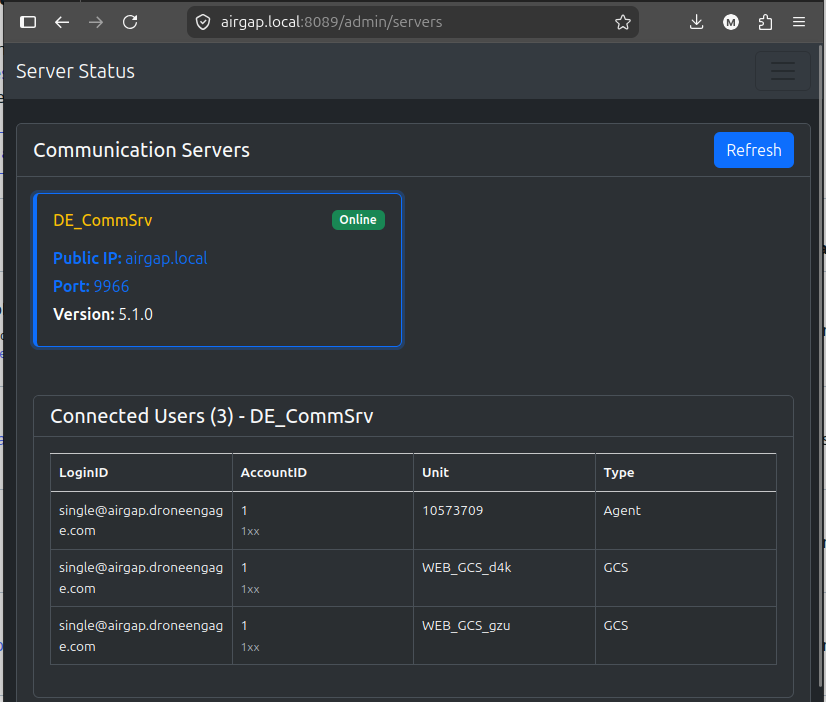
The “Servers” page provides real-time monitoring of communication servers:
Server Grid: Visual cards showing each registered server - Server ID - Online/Offline status (green/red badge) - Public IP address - Port number - Version information
Connected Users Panel: When a server is selected, shows: - Login ID - Account ID (with hashed account ID) - Unit name - Actor type (GCS, Agent, Admin)
Servers auto-refresh every 30 seconds. Click on a server card to view its connected users.
Configuration
The admin interface is configured in server.config:
{
    "webadmin_enable": true,
    "admin_username": "admin",
    "admin_password": "admin123",
    "session_secret": "change-this-secret-in-production",
    "webadmin_port": 8089,
    "webadmin_listening_ip": "0.0.0.0"
}
Configuration Parameters
Parameter |
Type |
Default |
Description |
|---|---|---|---|
|
boolean |
true |
Enable/disable admin web interface |
|
string |
“admin” |
Admin username for login |
|
string |
“admin123” |
Admin password for login |
|
string |
required |
Secret for session encryption |
|
number |
8089 |
Port for admin web interface |
|
string |
“0.0.0.0” |
IP address to bind to |
Security Considerations
Production Deployment
Change Default Credentials
Always change
admin_usernameandadmin_passwordUse strong, unique passwords
Session Secret
Use a long, random string for
session_secretDifferent for each deployment
Never commit to version control
SSL/TLS
Ensure
enable_SSListruein productionUse valid certificates from a trusted CA
Access via HTTPS only
Network Access
Consider binding to specific IP instead of
0.0.0.0Use firewall rules to restrict access
Consider VPN or private network access
CSRF Protection
Interface uses CSRF tokens for form submissions
Sessions are encrypted using the session secret
Troubleshooting
Cannot Access Admin Interface
Verify
webadmin_enableistrueinserver.configCheck that
webadmin_portis not blocked by firewallEnsure SSL certificates are valid if
enable_SSLis trueReview server logs for startup errors
Login Fails
Verify
admin_usernameandadmin_passwordinserver.configCheck that
session_secretis setClear browser cookies and try again
Check browser console for JavaScript errors
Statistics Not Loading
Verify API endpoints are accessible
Check browser console for network errors
Ensure storage backend (file/database) is accessible
Review server logs for API errors
Server Status Not Updating
Verify S2S WebSocket connection is working
Check
s2s_ws_listening_ipands2s_ws_listening_portconfigurationEnsure communication servers are properly authenticated
Review S2S authentication logs